
Invitation email · Portal · Mobile app
Accept your invitation
Open your invitation, confirm your email with a code and reach your workspace — and what to do if something goes wrong.
See how to accept your invitation
About this walkthrough
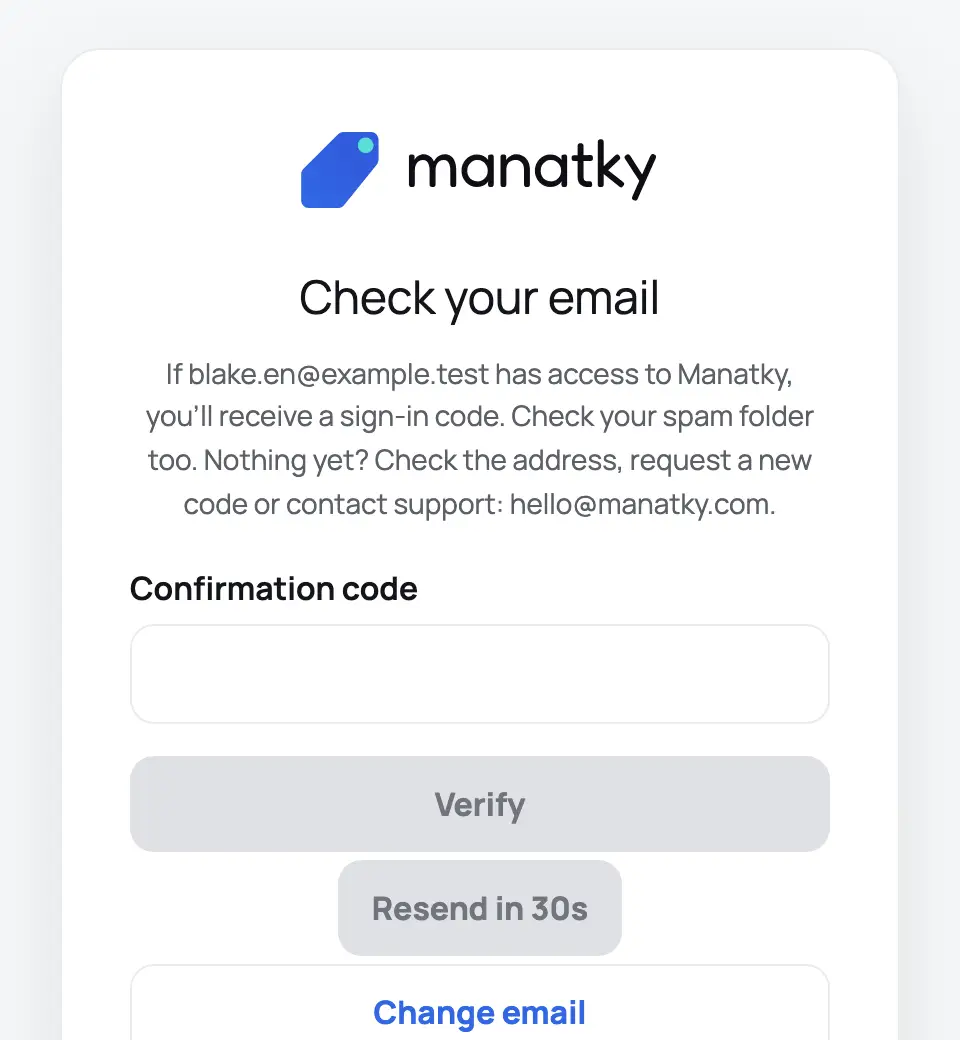
This walkthrough follows the written steps below and cannot accept an invitation or give anyone access. Its frames are real screens from a test workspace with fictional data. The first frame is the product’s email template with a placeholder link. “Check your email” is an illustration.
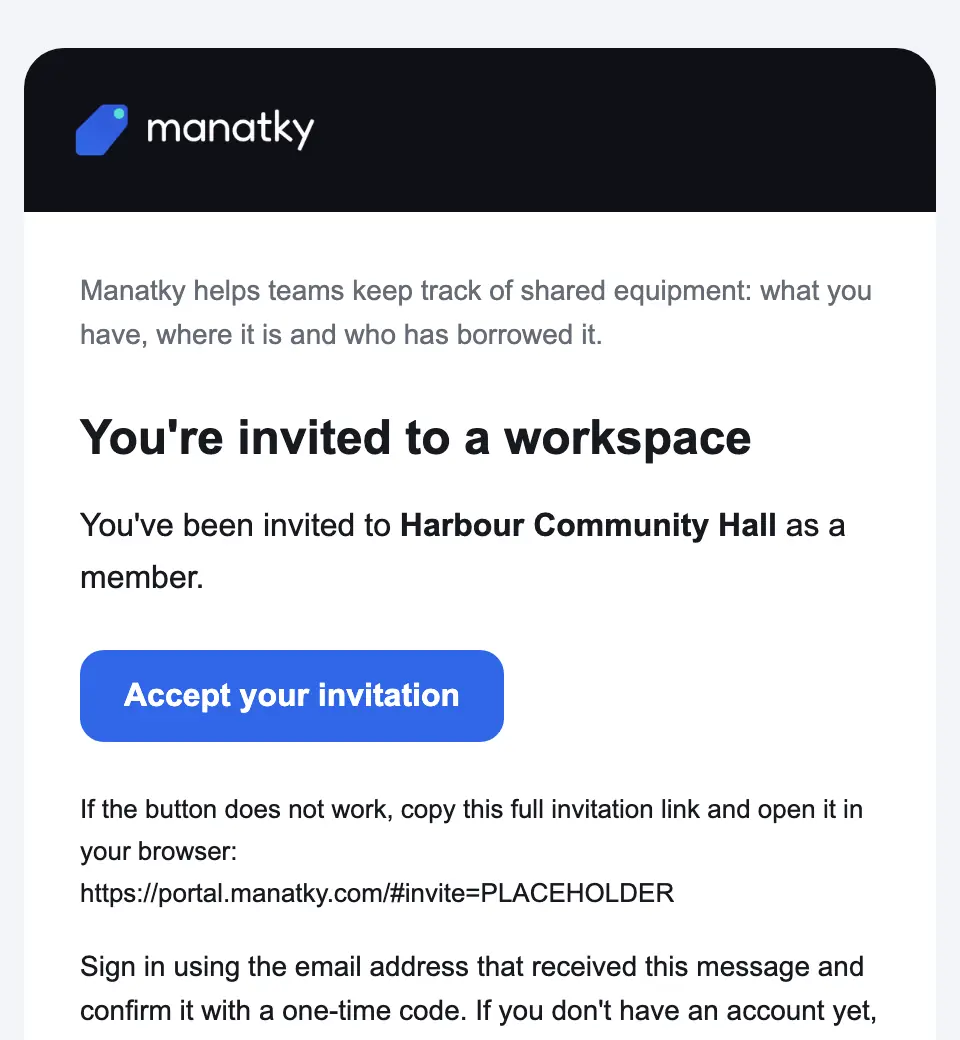 Email template
Step 1 of 7 · Open the emailOpen your invitation from the email: choose Accept your invitation.
Arrow keys ← → change step.
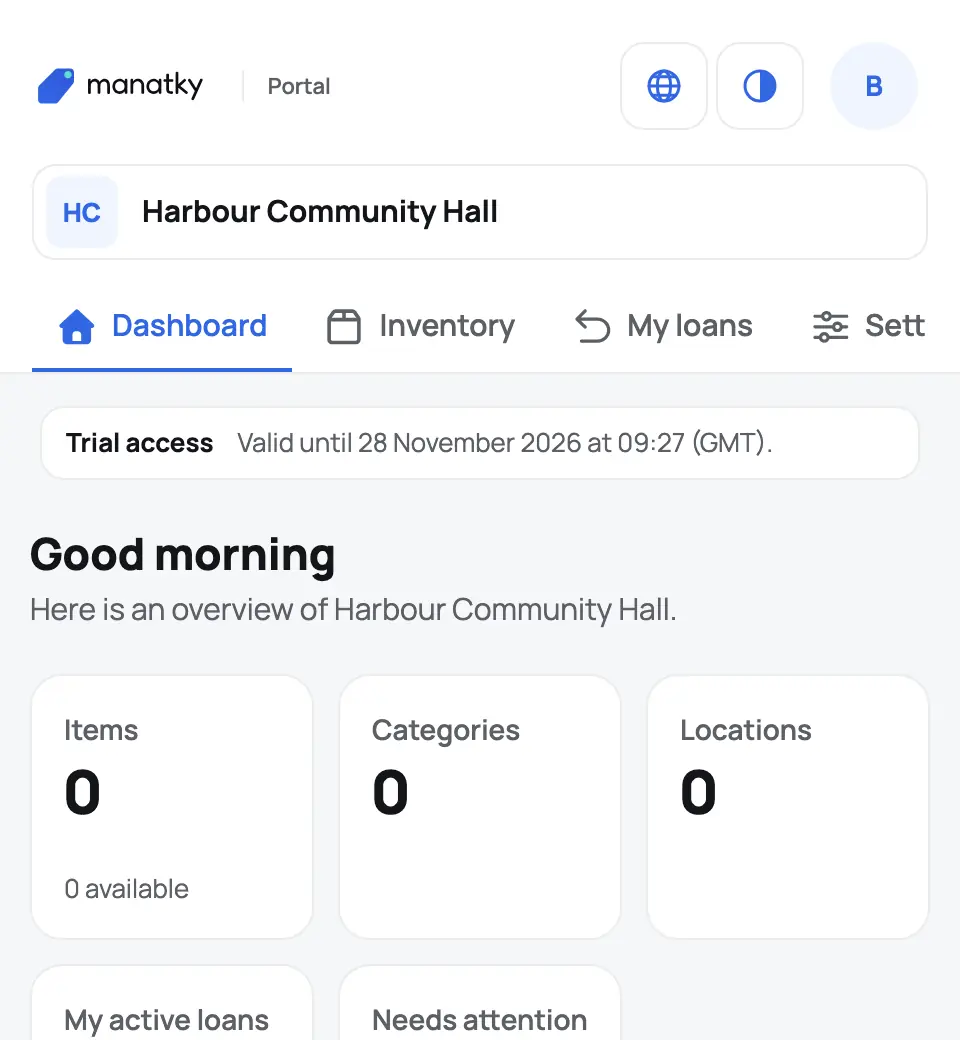
Open the invitation
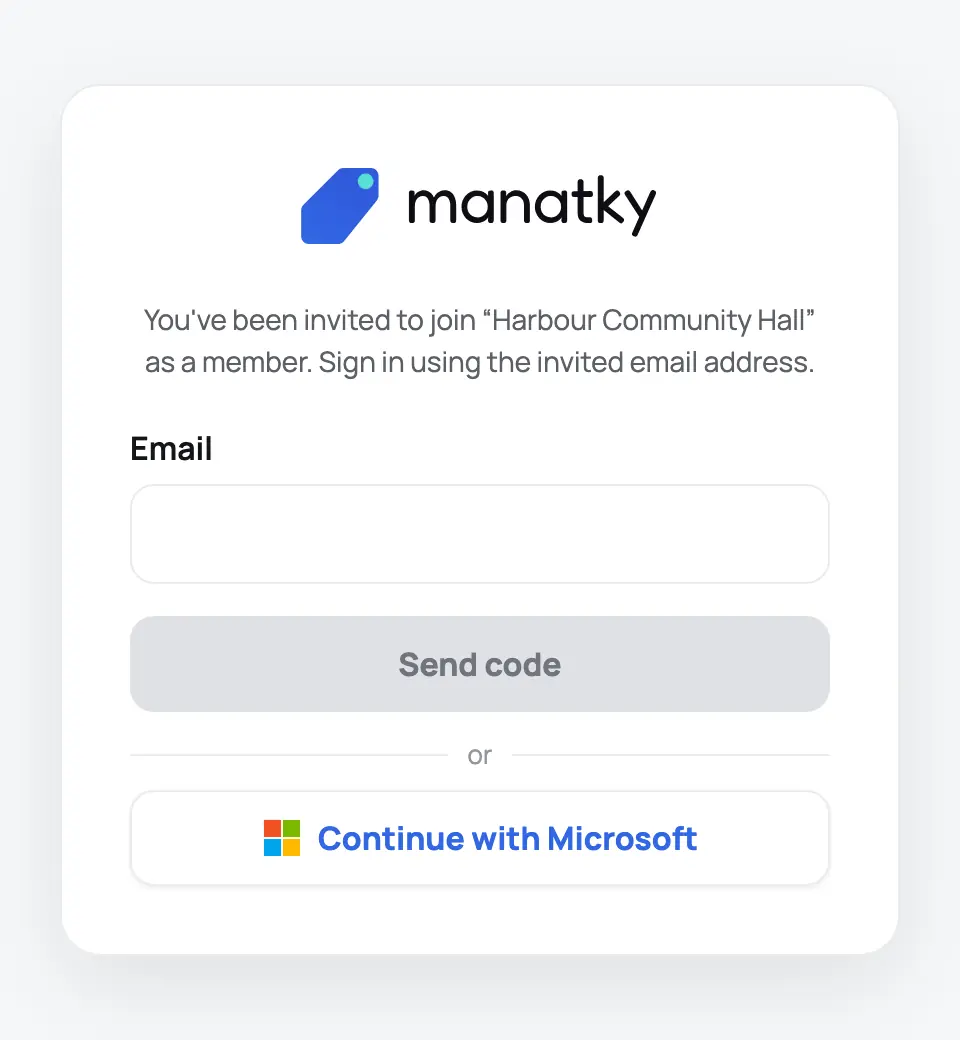
In the email from Manatky, choose Accept your invitation. If the button doesn’t work, copy the full link from the email: on the “You do not have a workspace yet” screen, choose I have an invitation, paste it and choose Accept invitation.
Confirm your email
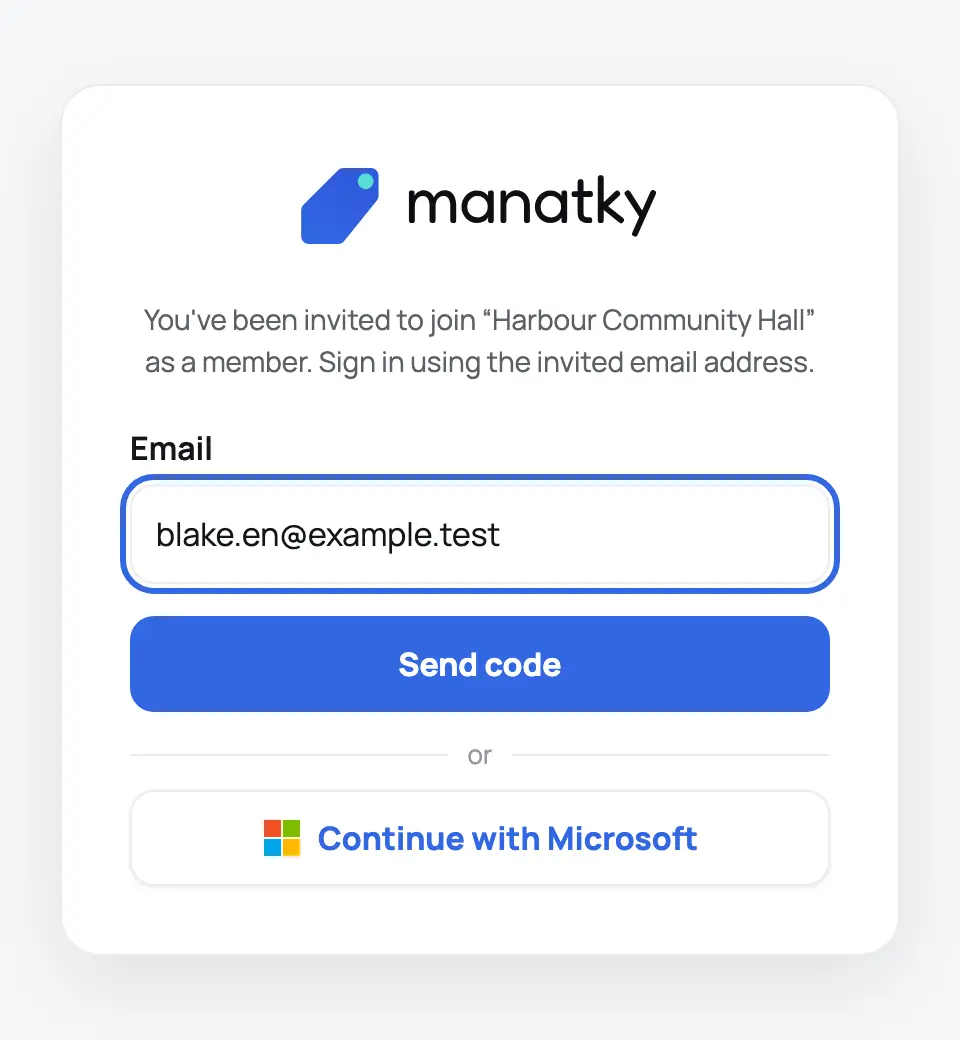
Enter the address the invitation was sent to, choose Send code, type the code from your email and choose Verify. New to Manatky? Your account is created when you confirm.
Your workspace opens
The workspace opens in the Portal with the role named in the invitation. If you belong to several workspaces, pick one under Choose a workspace.
Use the app on your phone
For everyday work, open the app from Open app in the email and sign in with the same address; you may get a new code. The next guide covers installing it.
Choose your first steps
Owners, administrators and members each have a short guide.
If something is not right
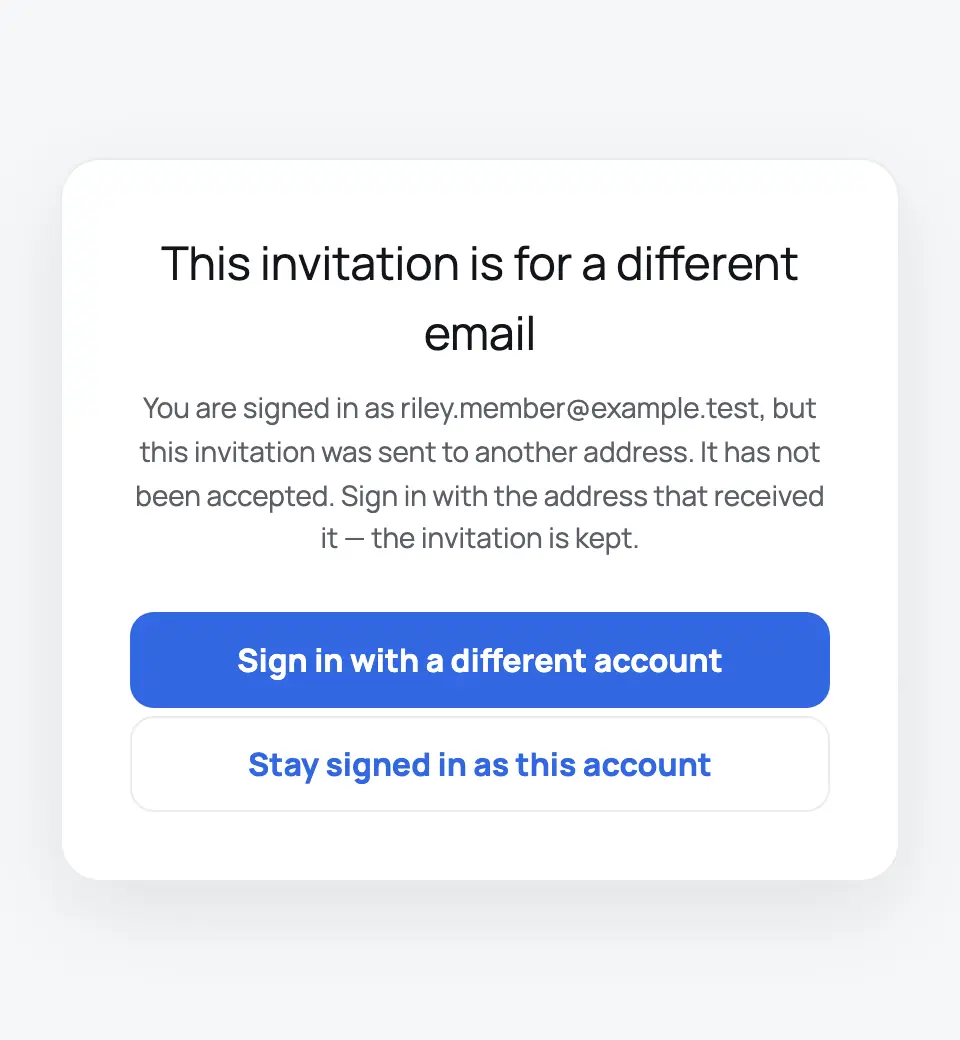
It says the invitation is for a different email
You’re signed in with another address. Choose Sign in with a different account and use the address that received the invitation — the invitation is kept. Choose Stay signed in as this account if you opened it by mistake.
My workspace isn’t there
Choose Refresh available workspaces. Still “You do not have a workspace yet”? Check the address under Signed in as — it must be the invited one — or choose I have an invitation and paste the full link from the email.
The invitation was already used
You may have joined already. Sign in with the same address, choose Refresh available workspaces if you don’t see it, and look under Choose a workspace. Still no access? Ask the workspace’s administrator or owner.
The invitation expired or was revoked
Invitations last seven days. Ask the person who invited you for a current one.
The code doesn’t arrive
Check your spam folder and the address, then choose Resend code (after a short wait) or Change email to correct the address.