
Mobile app
Add an item and photos
Create an inventory record and add clear photos so people can find the item.
See how to add an item
About this walkthrough
This walkthrough follows the written steps below and doesn’t change anything in Manatky. Its frames are real screens from a test workspace with fictional data.
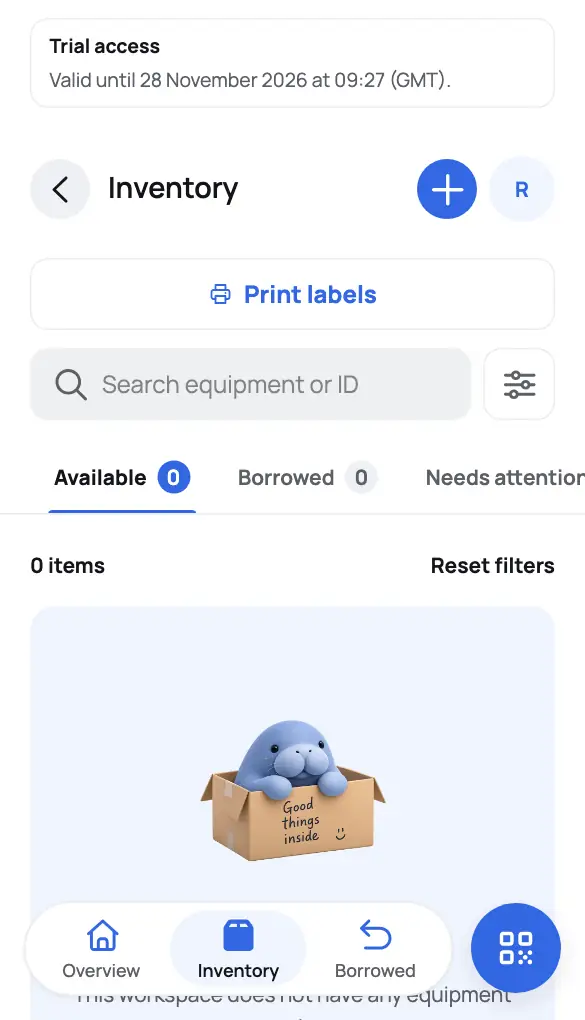 Product screen
Step 1 of 7 · Add equipmentIn Inventory, choose the plus button (Add equipment).
Arrow keys ← → change step.
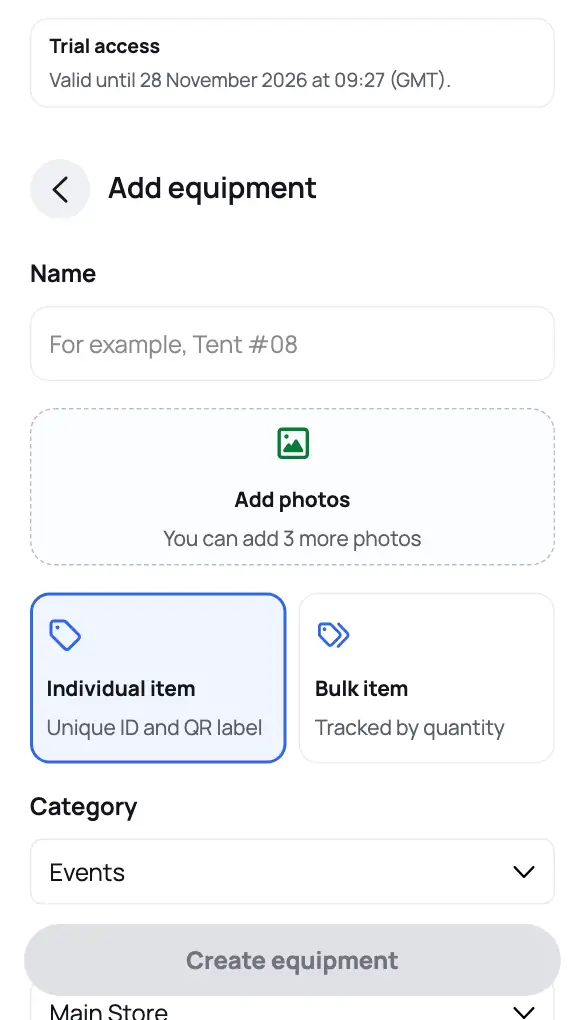
Start from Inventory
Open Inventory and choose the plus button (Add equipment). You don’t need Manage inventory access.
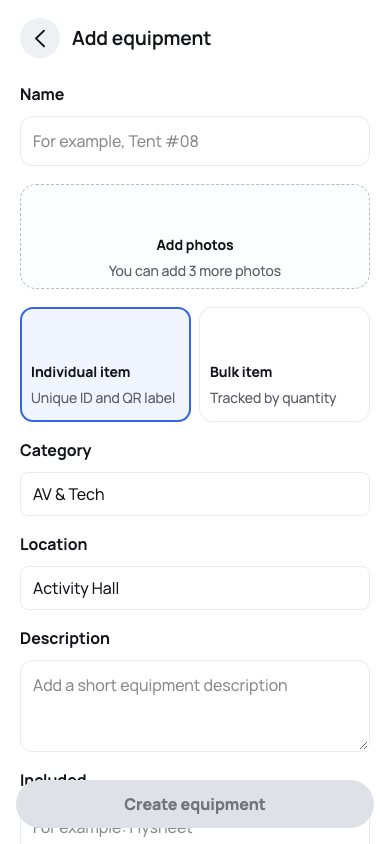
Start a catalogue record from Inventory; nothing is created until the form is confirmed. Describe the item
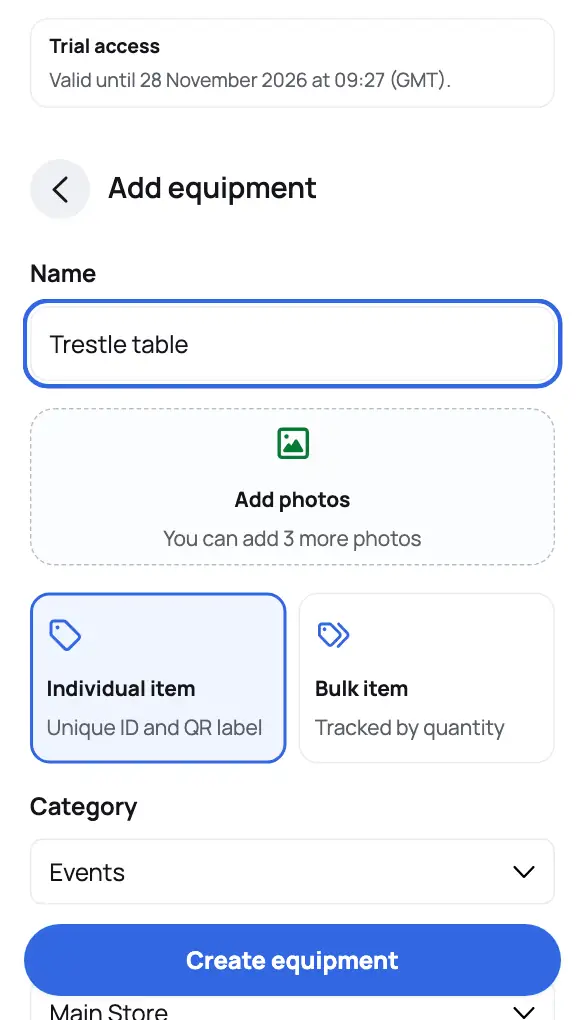
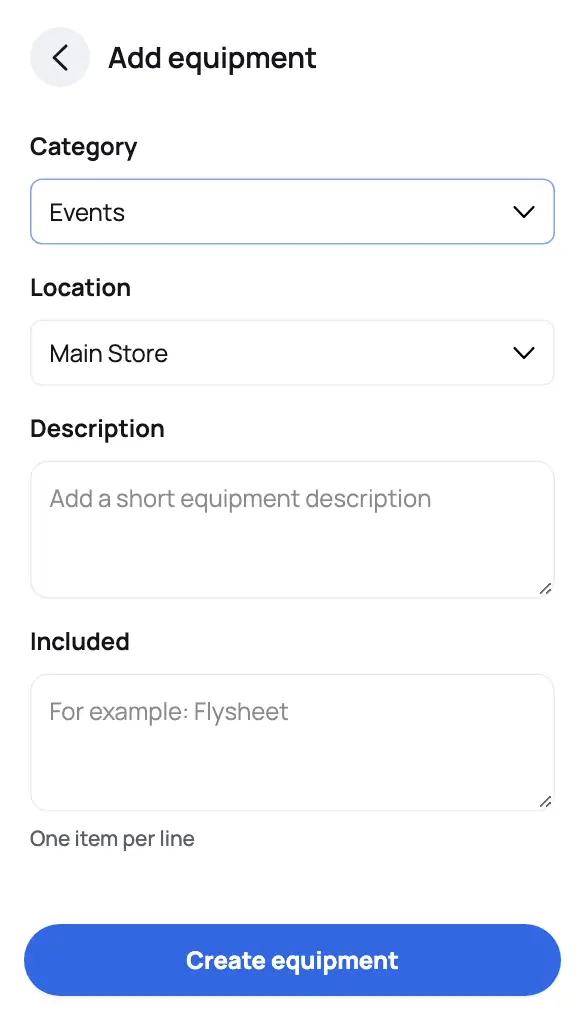
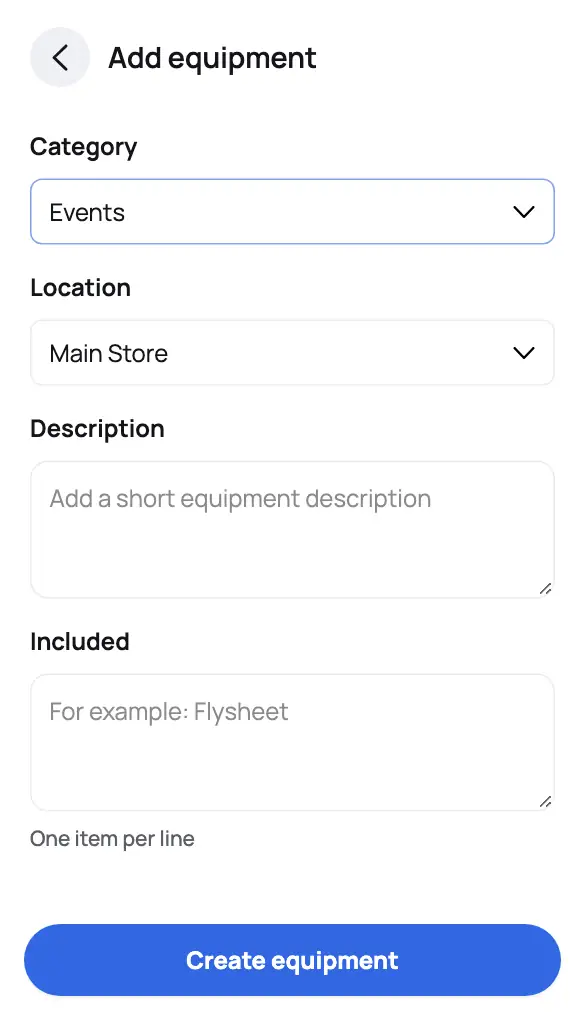
Enter a name, then choose a category and a location. A description, included items and a quantity are optional. If the category or location you need is missing, an administrator or owner can add it under Account → Manage inventory → Categories and locations.
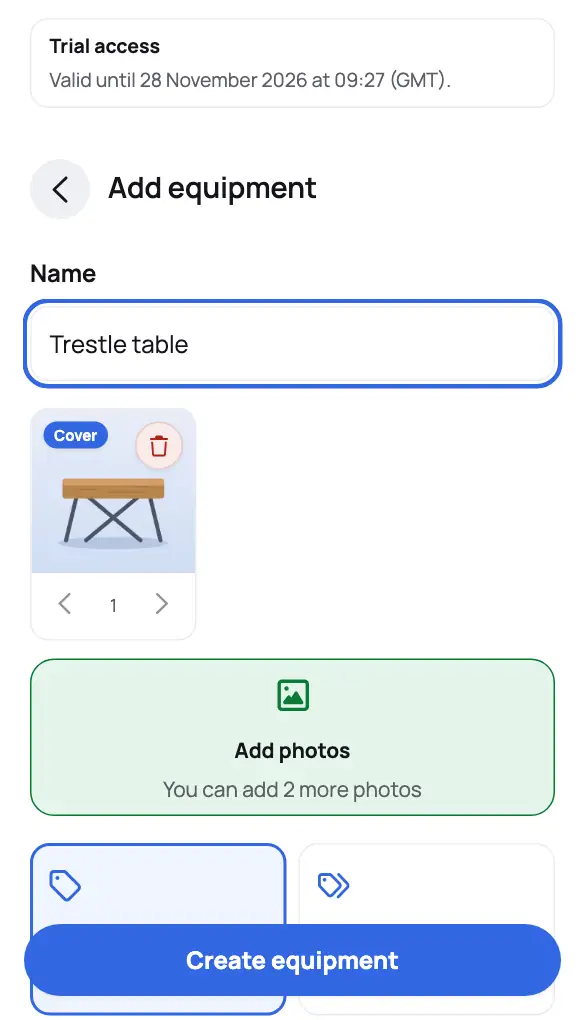
Add photos
Choose clear photos. Every active member can see them. They are separate from the condition photos taken when borrowing or returning, which only the borrower, the uploader, and administrators and owners can see.
Create and review
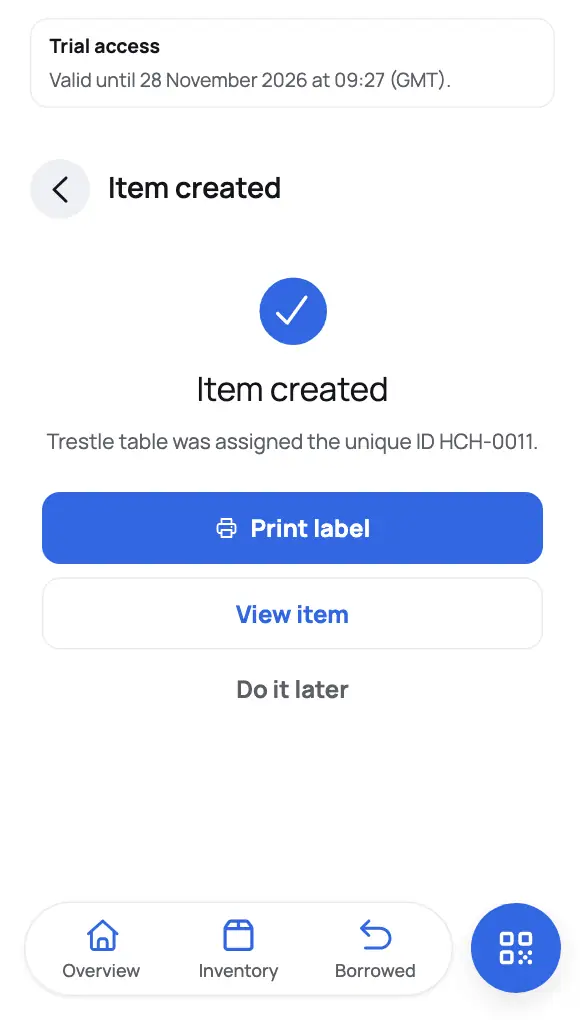
Choose Create equipment, then check the name, location, availability and photo order.