
Mobile app · Portal
Review borrowing history
Find active, returned, overdue or issue-linked loans.
Open your history
In the app, members open Account → Borrowing history; administrators and owners open Account → Operations history. In the Portal, open Loans (members see My loans).
Choose a status
Filter by active, returned, overdue or issue-linked loans. Administrators and owners can also filter by borrower — the screenshot shows the workspace-wide history they see.
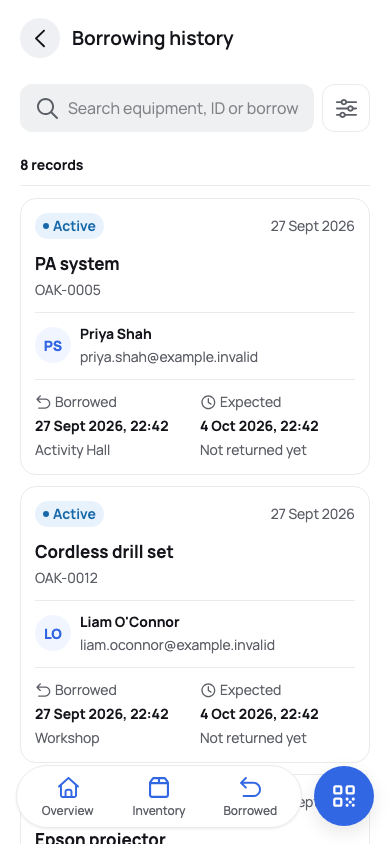
Administrators and owners can review workspace-wide borrowing history. Narrow by date
Use the date, category and location filters to find a loan.
Read the result
Check quantities, dates and issue status. In the Portal, Export CSV saves the rows you filtered.