
Portal
Review Activity and export CSV
Filter operational records in the Portal and export what you see.
Open a table
In the Portal sidebar, choose Inventory, Loans or Activity. Members don’t see Activity, and Loans is called My loans for them.
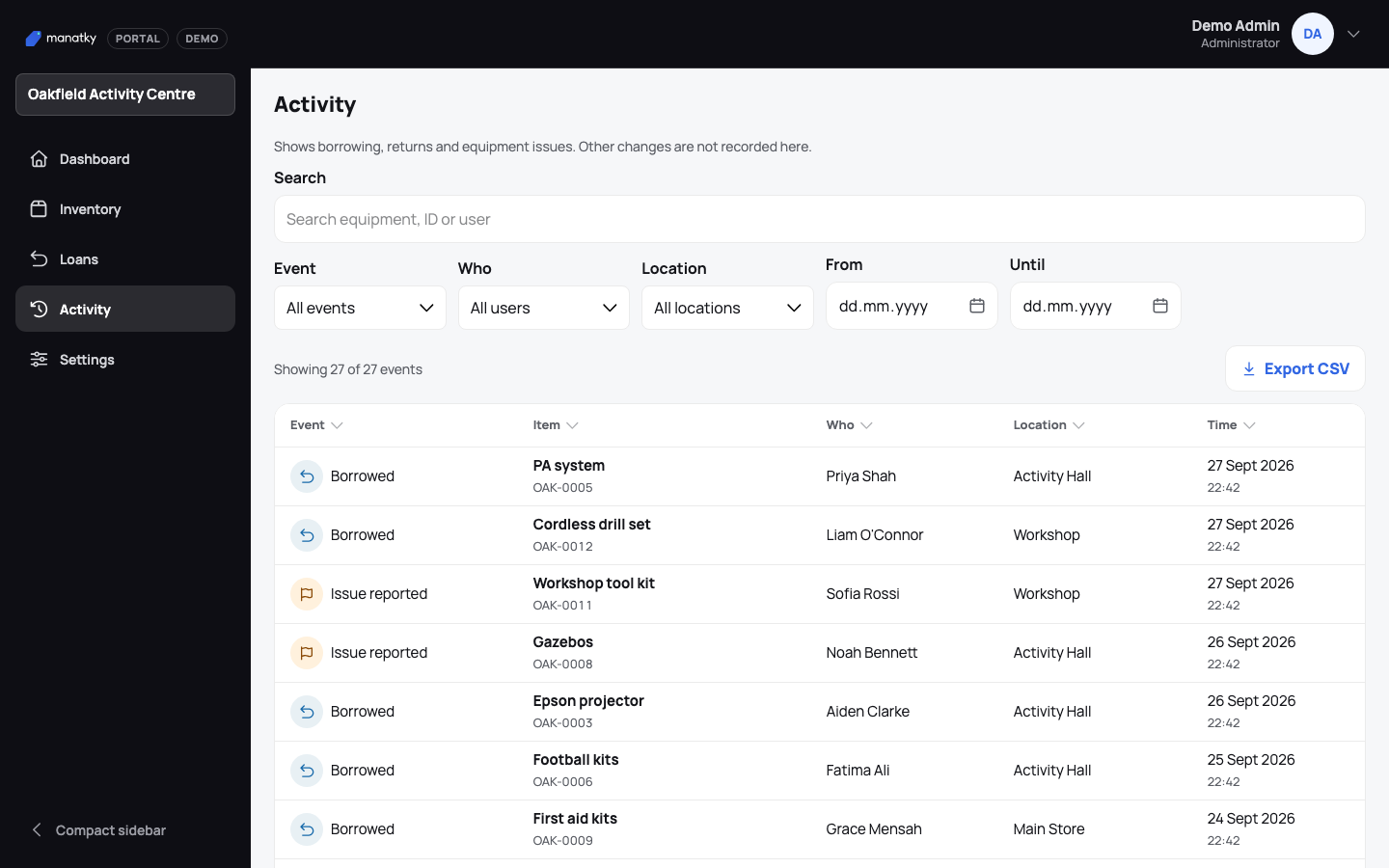
Activity brings borrowing, returns and reported issues into one filterable view. Filter and sort
Search, apply filters, and select a column heading to sort.
Export what you see
Choose Export CSV. The file has the rows you filtered and sorted, limited to what your role can see.
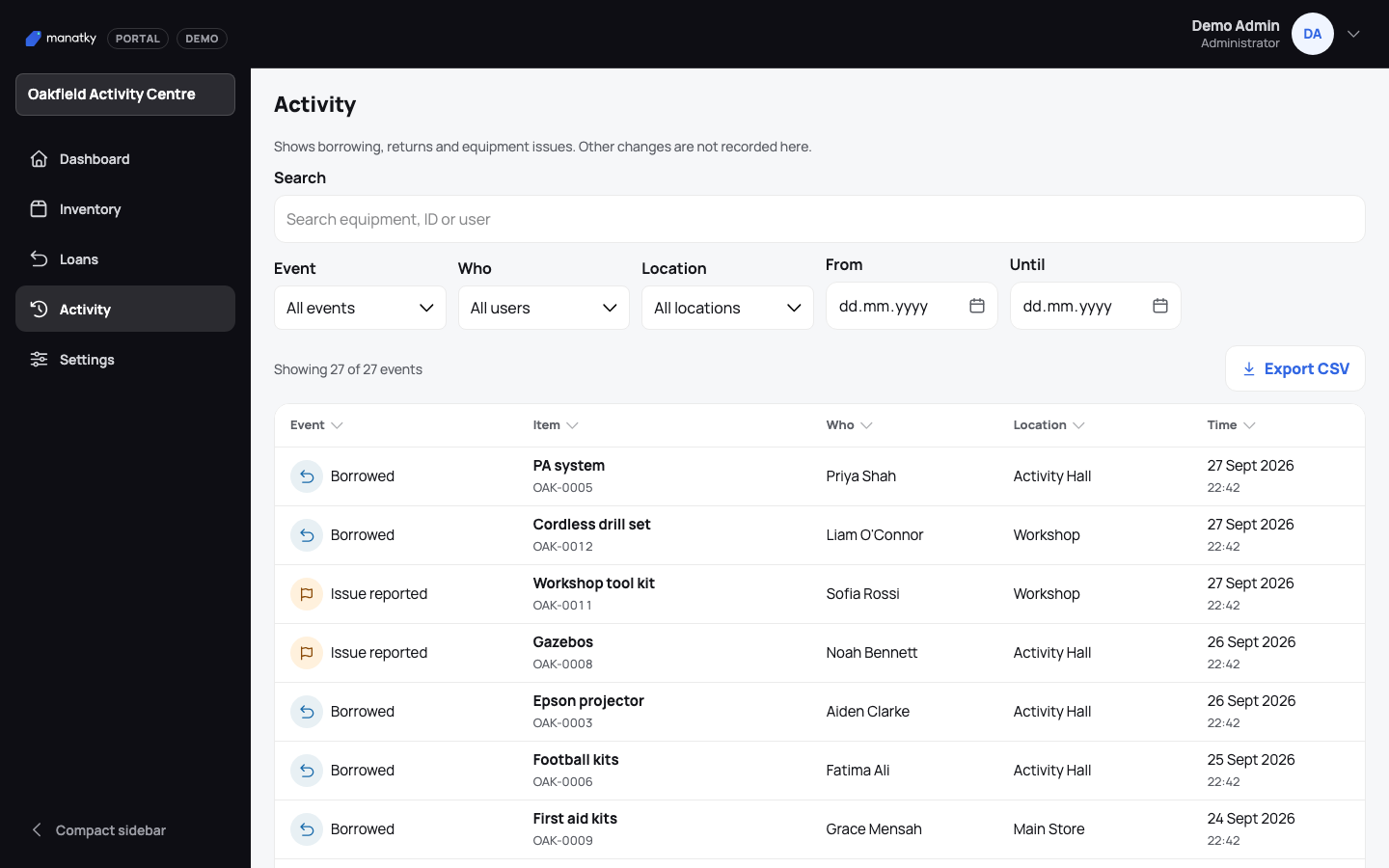
Export CSV uses the filters and sorting already applied to the table. Check it’s complete
If the Portal says only the loaded records are included, the export may be incomplete — narrow the filters first.